
Blinkshot
Screenshot now, decide later.
Blinkshot works with the screenshot tools built into macOS. After you take a screenshot, keep it, move it to the Trash, or keep it for a little while.
$12 once · Free for 14 days · Version 1.0.14 · 8.3 MB · Requires macOS 27 or later.
Blinkshot is signed and notarized by Apple, so it opens normally. Drag it to your Applications folder, and open it from there if macOS ever asks.
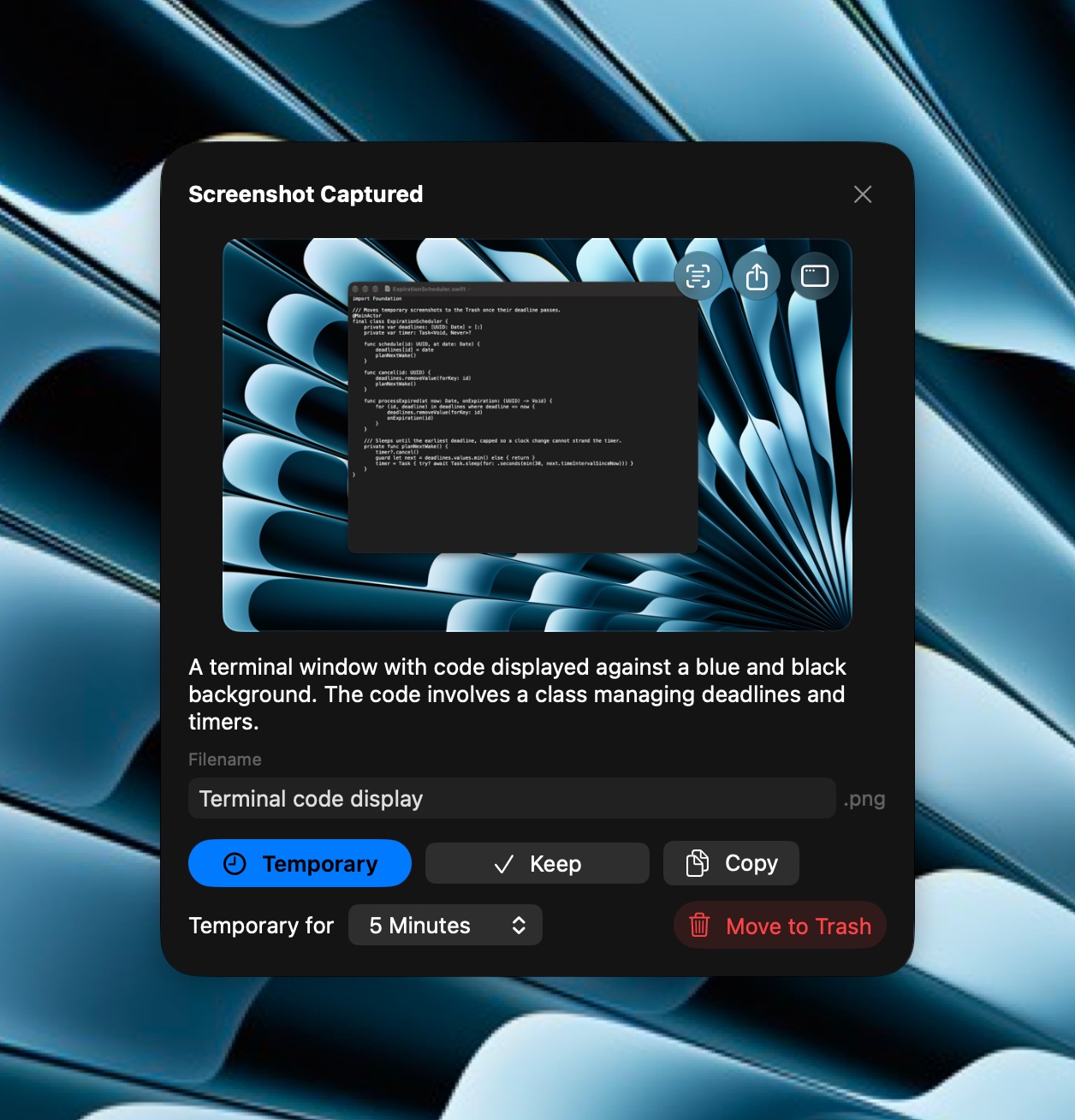
Decide right after you capture.
Take a screenshot the way you always do. A small popup appears in the lower-right corner of the screen you took it on. Temporary keeps the screenshot for a set time. Keep saves it with no timer. Move to Trash moves it to the Trash right away.
Three buttons on the preview save a trip to the Inbox. Copy Text puts the text in the screenshot on the clipboard. Share hands it to another app. Extract Window shows just the window you captured, and whatever you choose next keeps just that window.
Take several screenshots in a row, and the popup shows them one at a time. To decide without reaching for the pointer, press Control-Shift-Command-B in any app.
Blinkshot finds new screenshots in the folder where macOS saves them. It reads that setting to open the right folder for you, and changes it only if you ask it to.
Let short-lived screenshots go.
Many screenshots are useful for only a few minutes. Mark one Temporary for 1, 2, 3, 5, or 15 minutes, 1 hour, or until the end of the day. When the time is up, Blinkshot moves it to the Trash, where you can still recover it.
Changed your mind? Select the screenshot in the Inbox and click Keep. If you rename or move it in Finder, Blinkshot keeps it too.
Review everything in the Inbox.
The Inbox lists the screenshots Blinkshot is tracking, with their status and when they arrived. Keep a screenshot, move and rename it, or open it with Quick Look. Remove from Inbox takes a screenshot off the list and leaves the file where it is.
Search narrows the list as you type, across filenames, descriptions, and text Blinkshot has already recognized in an image. A screenshot it has never read has no recognized text stored, so it matches on its filename alone until you extract its text. The filter button shows one status at a time.
Select several screenshots, and Keep, Mark Temporary, and Move to Trash act on all of them at once.
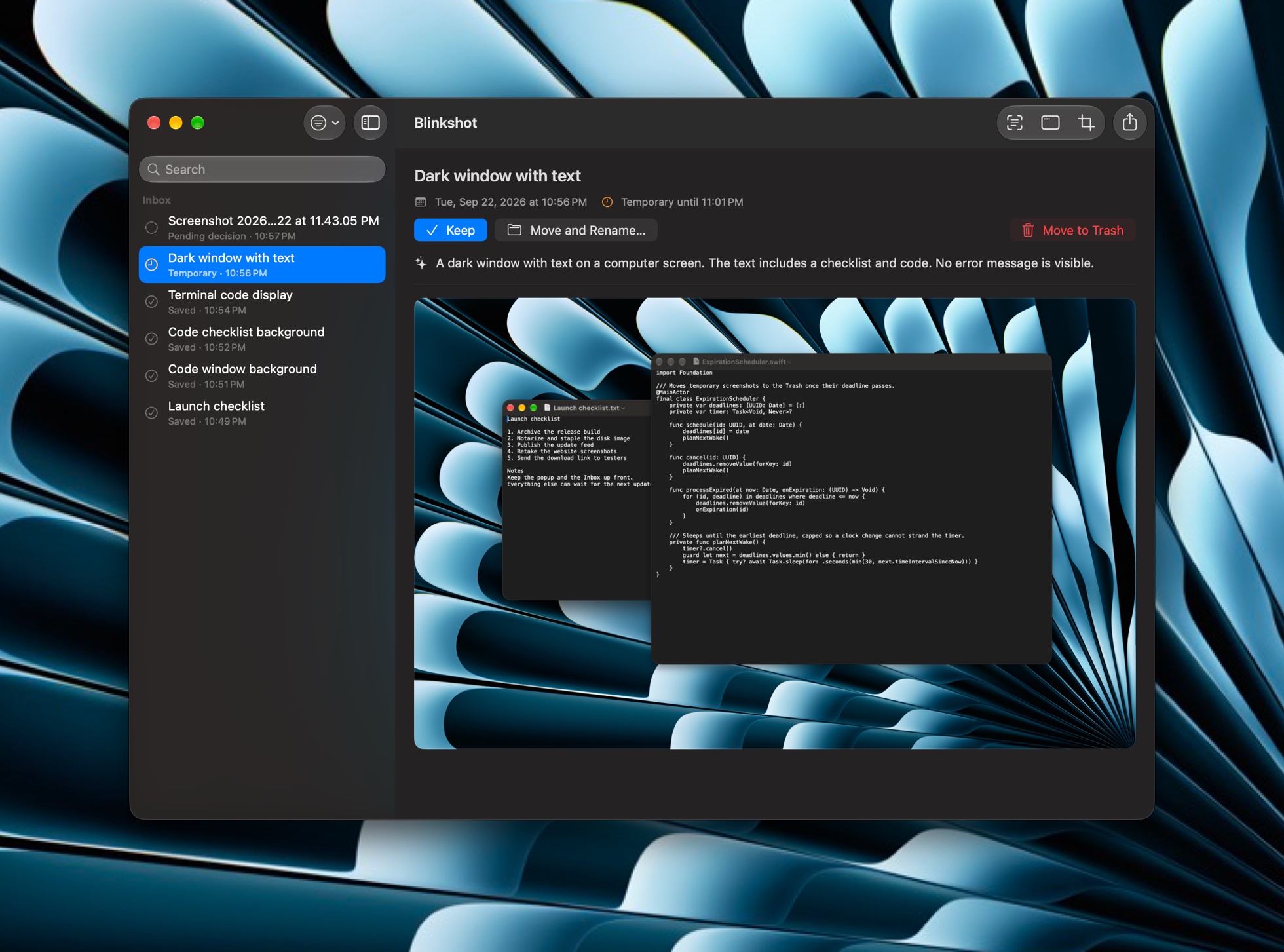
Hand a screenshot to another app.
Press Command-C to copy a screenshot, drag it into a Mail message or a Finder window, or choose Share for AirDrop and the rest of what Finder offers. All three are in the Inbox, and Share takes as many screenshots as you have selected. The popup has Copy and Share of its own, and you can drag its preview while you’re still deciding.
Each one hands over the file as it sits on disk, so a HEIC screenshot arrives as a HEIC and nothing is encoded a second time. Sharing from the popup sends it under the name the popup shows, not the date macOS gave it, without renaming anything until you decide. Copying changes nothing: a screenshot marked Temporary still goes to the Trash at its time.
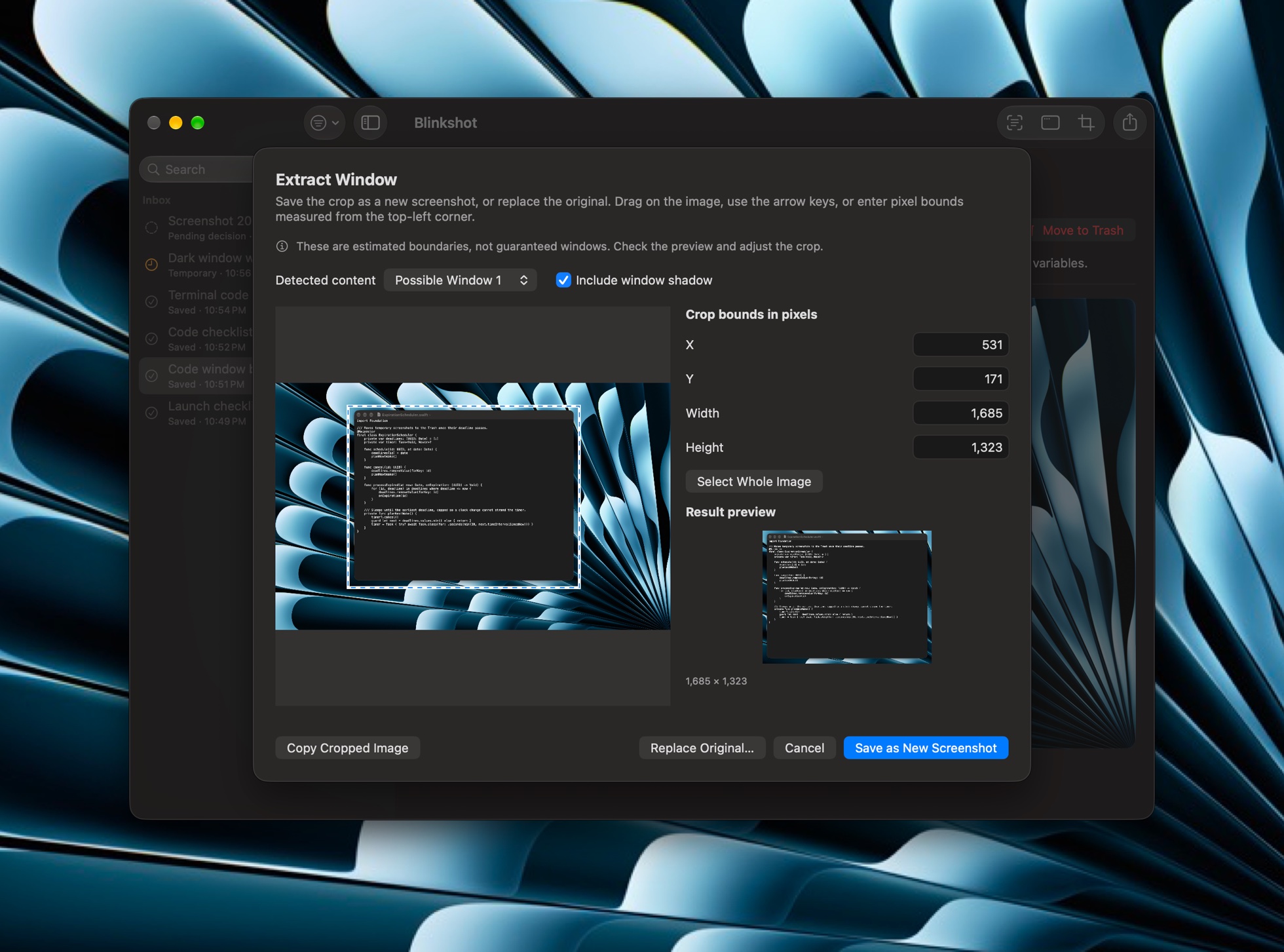
Lift a window out of any screenshot.
Captured the whole screen and wanted one window? Extract Window finds the windows in a screenshot and crops to the one you pick. Keep the window’s drop shadow or leave it behind: with the shadow on, the crop takes in exactly the shadow macOS drew, on every side. Adjust the edges by dragging, by the arrow keys, or by typing pixel bounds. Cropping works the same way. Save the result as a new screenshot, or replace the original.
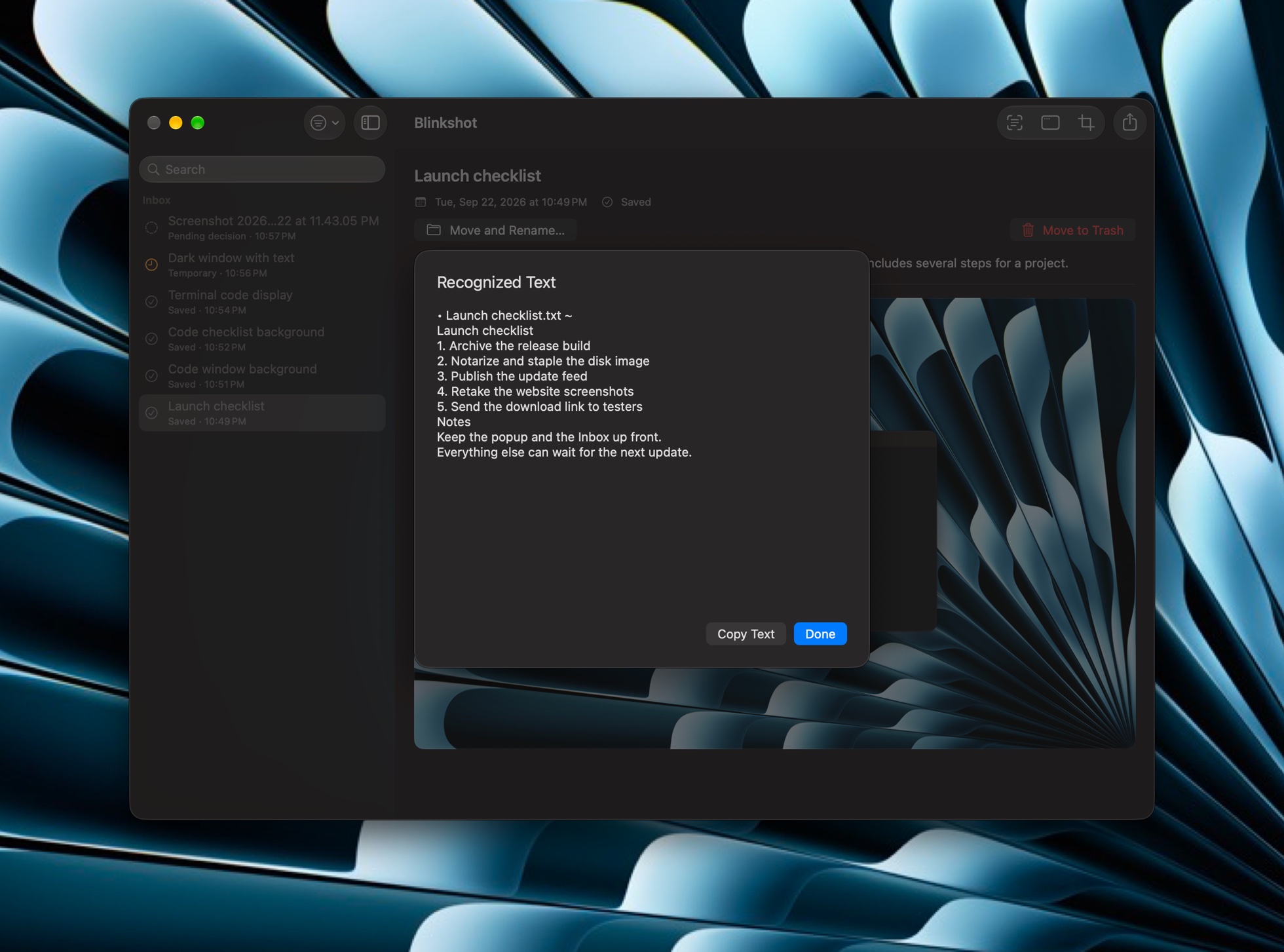
Copy the text out of a screenshot.
Blinkshot recognizes the text in a screenshot on your Mac, so you can read it and copy it instead of retyping it. Code, an error message, an address: Copy Text puts it on the clipboard.
Descriptions, made on your Mac.
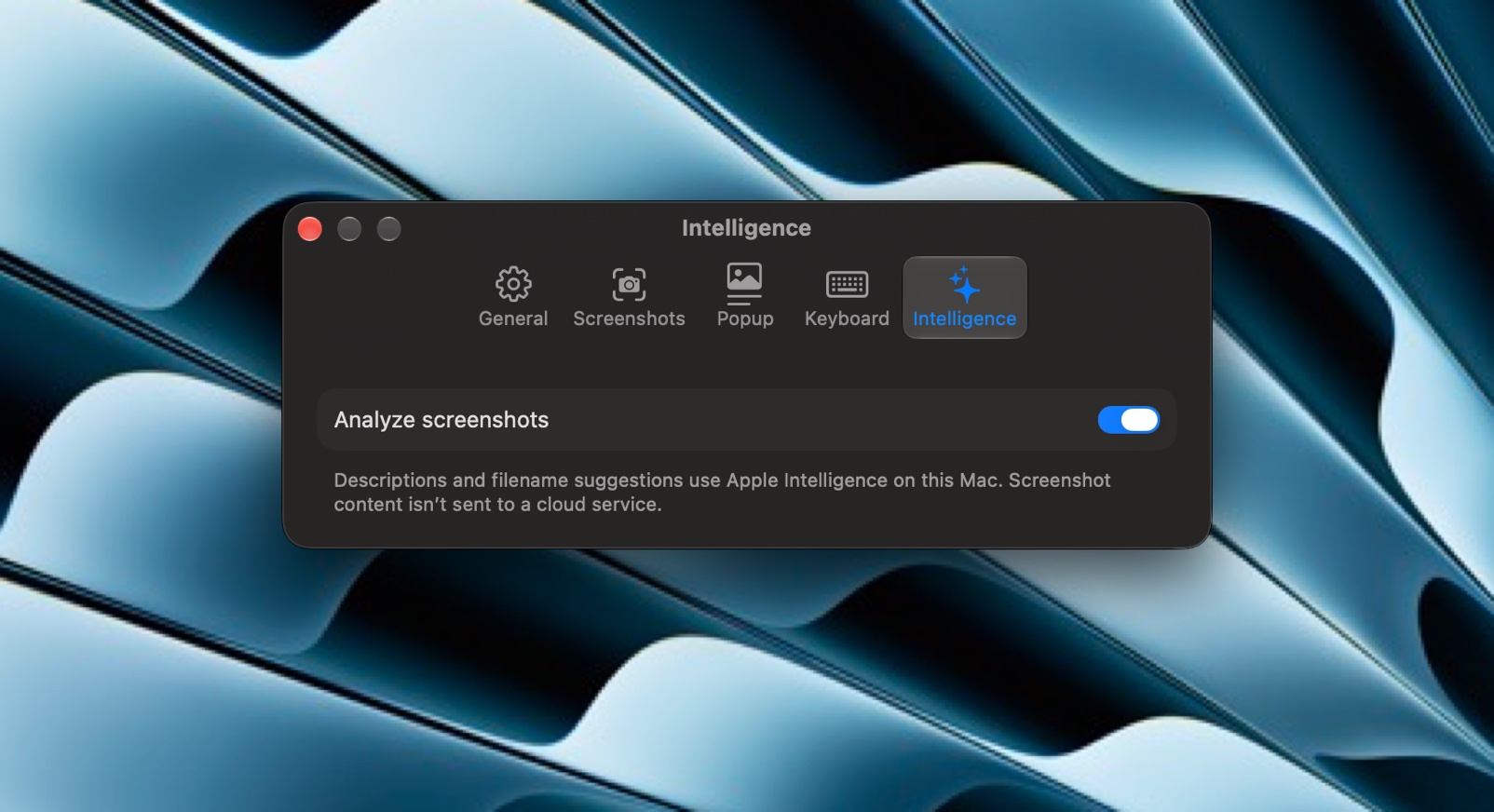
With Apple Intelligence turned on, Blinkshot describes each screenshot and suggests a filename, so it’s easier to recognize later. The image and its text are processed on your Mac, not sent to a cloud service.
Blinkshot doesn’t collect data or record your screen, and it works only with the folder you choose. The one connection the app makes is to this site, to look for a new version. Your licence key is checked on your Mac and sent nowhere. Buying is handled by Paddle, and their checkout loads only once you choose Buy. Read the privacy policy
Try it for two weeks, then $12.
Blinkshot works fully for 14 days. After that the popup stops appearing and everything else keeps going: your Inbox is still there, and screenshots you marked Temporary still move to the Trash on time. Nothing you have is taken away, and nothing is lost by deciding late.
One payment of $12, for this Mac and any other Mac you own. No subscription, no account, and no renewal.
The checkout didn’t open. It may be blocked by an extension. Email blinkshot@onboardconnect.io and I’ll send you a payment link.
You get a licence key by email. Open Blinkshot > Settings > Licence, enter the address you bought with and paste the key. The key is checked on your Mac: it isn’t sent anywhere, it works offline, and it keeps working if you rebuild your Mac.
Requirements
- Operating system
- macOS 27 or later
- Descriptions
- A Mac that supports Apple Intelligence, with Apple Intelligence turned on. Text extraction works without it.
- Screenshots
- The screenshot shortcuts and Screenshot app built into macOS. Screenshots copied only to the clipboard aren’t detected.
- Updates
- Blinkshot looks for new versions here and installs one only after you agree. It asks before it ever checks on its own, and Settings can turn that off.
- Account
- None needed